Add team resource to the calendar
Use the Plan tab to add team resource (employees) to a shift in the calendar.
Each team’s shifts are held in a calendar within a work area. For example, calendars could be ‘Headquarters’ and ‘Factory’ in the work area of ‘Manchester’. Each calendar holds teams made up of resources (employees).
Note: Each employee resource must not be assigned to more than one team.
To add a resource:
- Open the Plan tab.
- Click
 and select the work area that you want to work with:
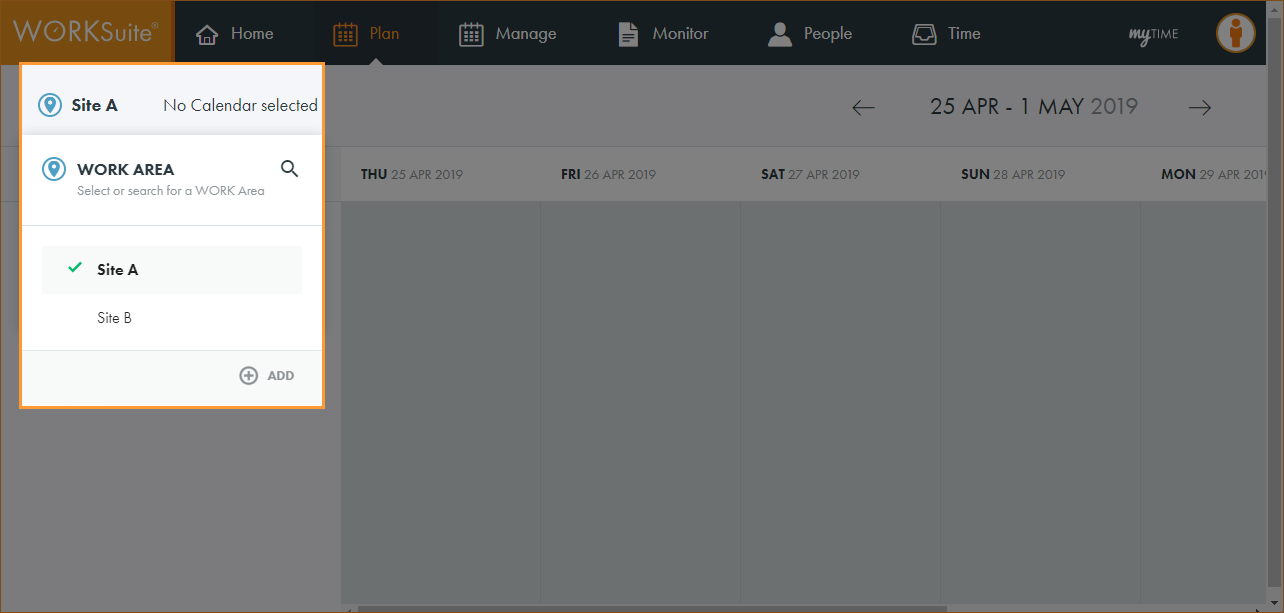
Note: By default, your previously selected work area is preselected.
- Click No Calendar selected and select the calendar that you want to work with:
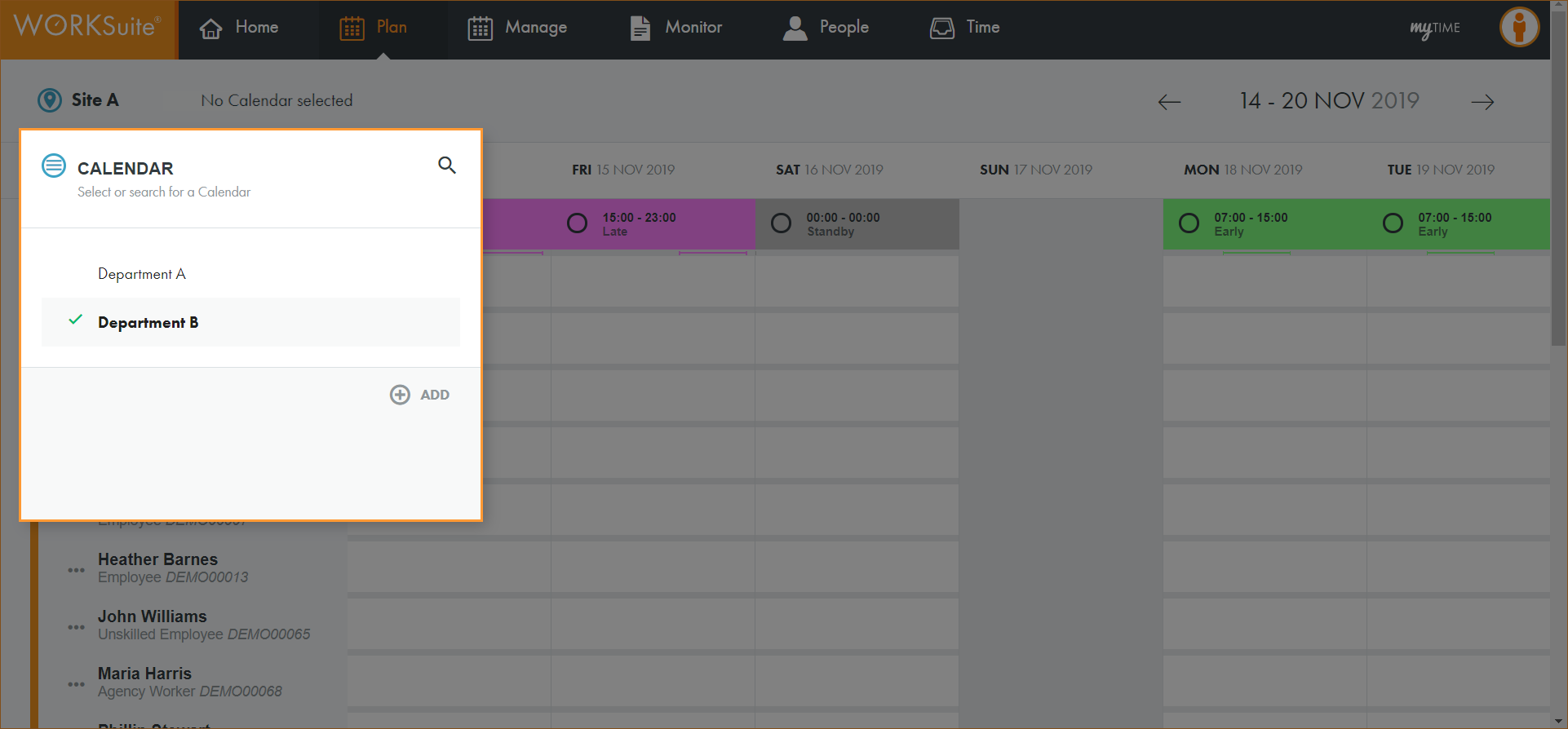
Note: By default, your previously selected calendar is preselected.
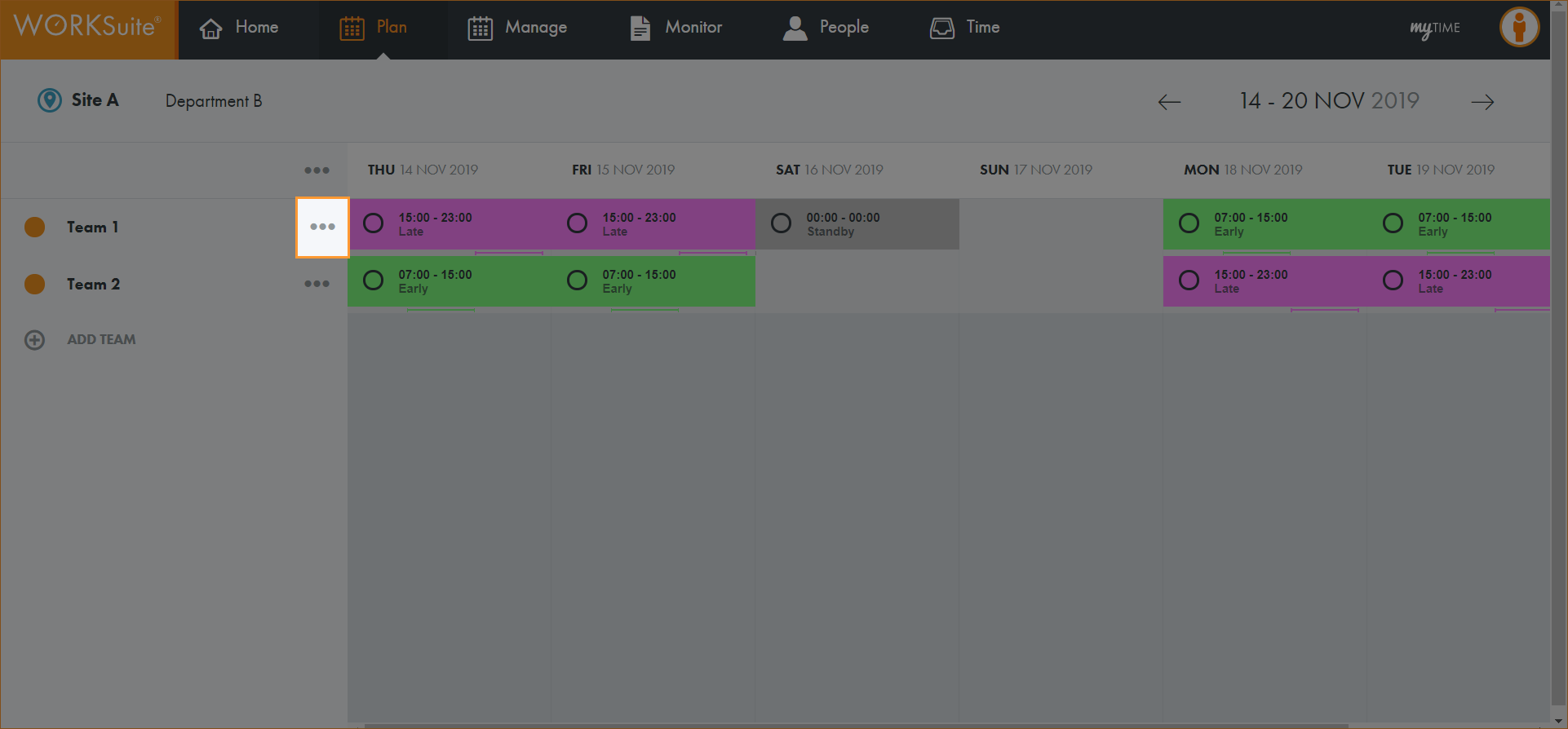
- Scroll to the team that you want to work with and click …:
- Select Show Resources:
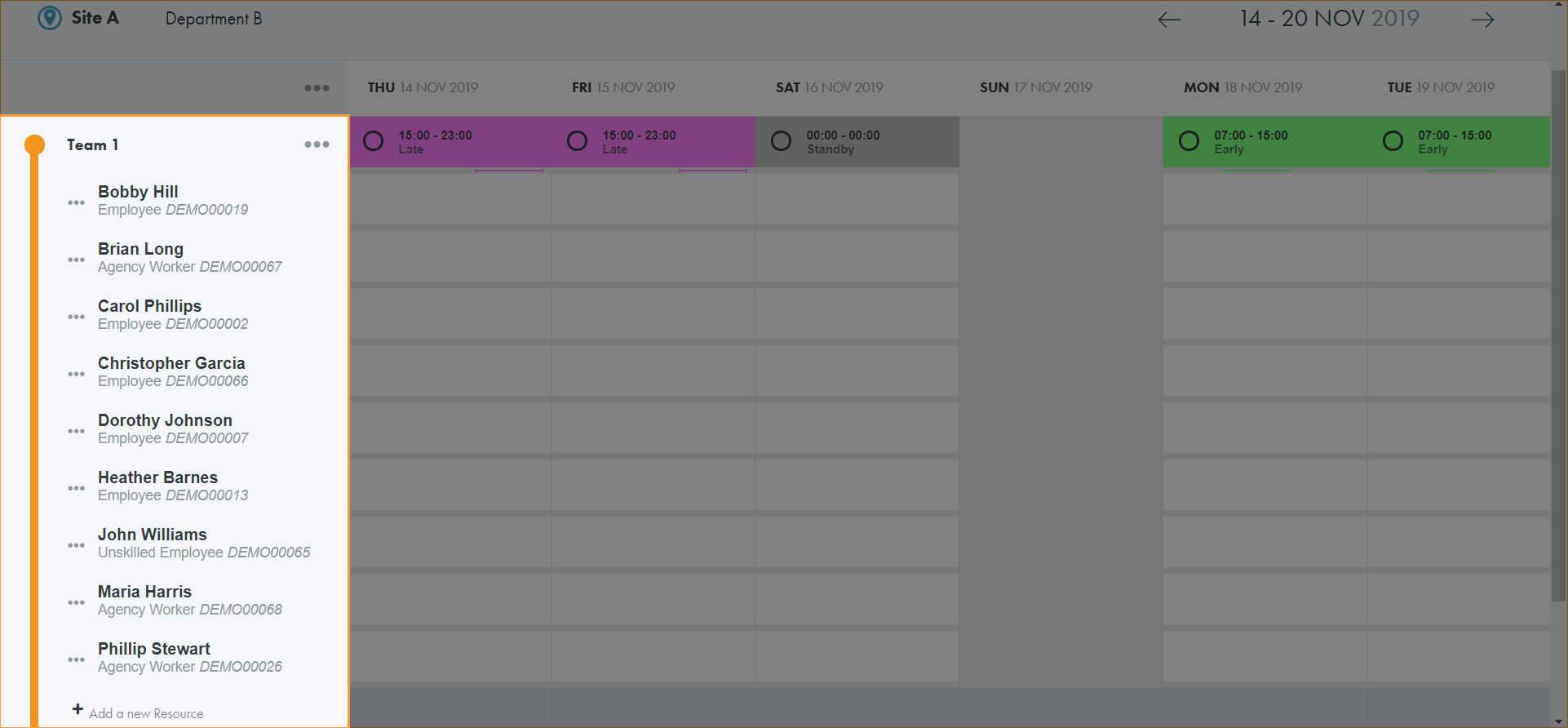
- Click + Add a new Resource at the bottom of the current team list to display the staff list:
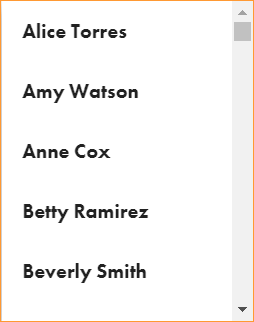
- Start typing the resource name to filter the list and select the resource that you want to add to the team:
- Each resource that you add to the team is allocated to the team shift.
- Any resource can be assigned to any team.
- Resources can only be assigned to one team at a time.
- At least one resource must be assigned to a calendar before it can be published.
- Refresh the page and expand the team list to display the resource in each team.
- Continue to add resource to the team until it is complete.
- You are now ready to publish the calendar.